Fractal Channels • Multiple Time Frame Price Action • Time-Based Volume
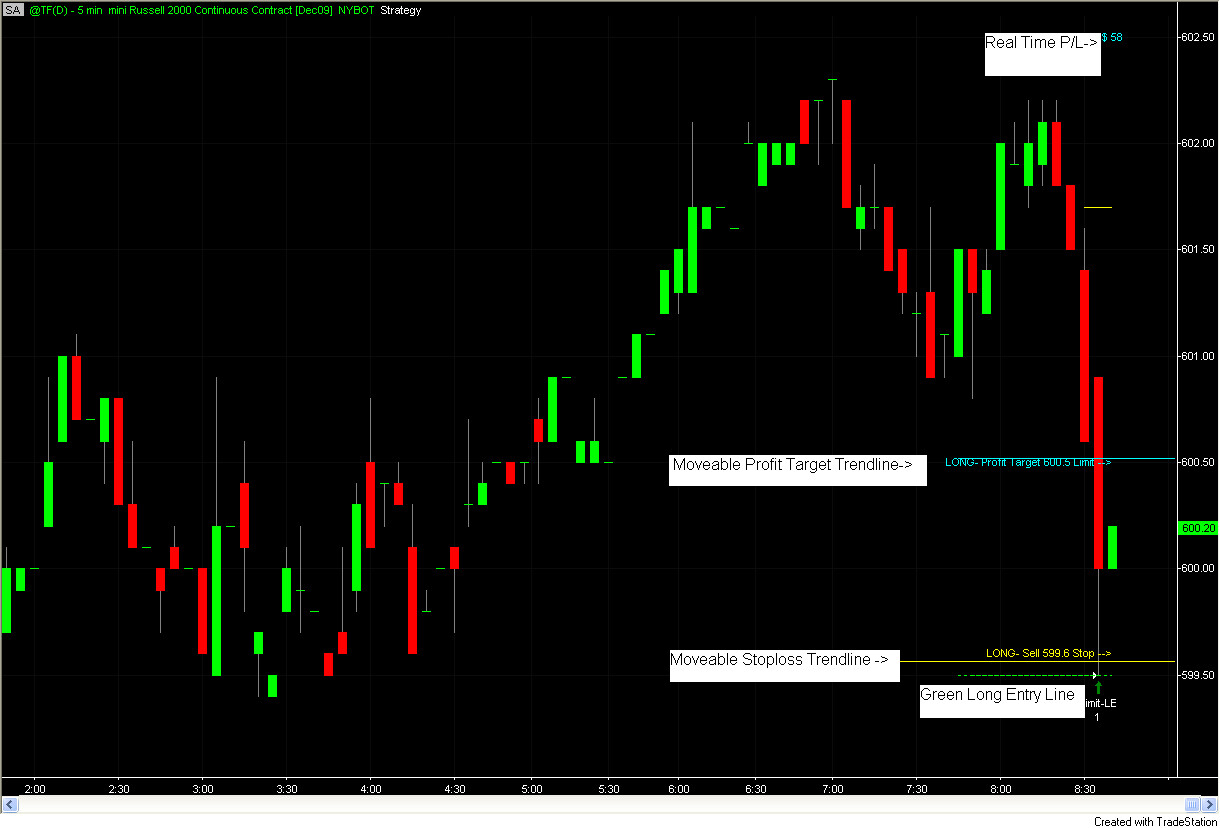
Visual Chart Trading is a family of five TradeStation strategies that lets you control trade entries, exits, stop losses, and profit targets by drawing trend lines directly on your chart and changing their color. There is no order form to fill out. You drag a line to a price level, right-click it, and change its color — the strategy reads that color and places the corresponding order on the next tick.
The result is a complete order management interface built directly into your price chart. Your entry line, stop loss line, and profit target line are always visible on the chart at the exact levels you set. Drag the stop loss line higher as a trade moves in your favor. Change the profit target line to a new level. Color any line magenta to exit the position immediately at market. Everything happens on the chart, in context, without leaving the screen where you read the market.
All five strategies use the same color-to-order system:
To change a line's color: right-click the trend line → Format Trendline → Color. The strategy picks up the change on the next tick.
CT_TL_Trader — the full-featured version. Creates two entry lines plus one fat market-order line at startup. Supports dynamic position sizing (size calculated from account balance, risk %, and stop distance) or fixed quantity. Displays trade metrics on the chart: contract count, dollar risk (RP), projected profit (PP), risk/reward ratio (RR), and open P&L.
CT_TL_Trader_Market — simplified single-line version. One fat white line triggers a market order when price crosses it. Optionally enables an automatic stop loss line positioned by average true range. Use when you want immediate market execution without managing entry type.
CT_TL_Trader_Pre-Trade — adds pre-trade analysis while you are flat. Before placing an order, position the entry line and stop line where you intend to trade — the strategy calculates and displays the projected contract count, total dollar risk, potential profit, and risk/reward ratio live on the chart. Move the lines to see the numbers update. Commit to the trade by coloring the entry line.
CT_TL_Trader_Manual — uses trend line ID numbers instead of auto-created lines. Draw your own lines on the chart, note their ID numbers, and enter those IDs in the strategy inputs. The strategy monitors and responds to the color of those specific lines. Useful when you already have lines drawn that you want to re-use for trading.
CT_TL_Trader_Triple — scales out of positions with three separate profit target levels. Three cyan lines are auto-positioned at ATR-based distances (defaults: 1.5×, 3.0×, and 4.5× ATR) and configurable exit percentages (default: 34% / 34% / remainder). Includes a stop loss reversal option — when the yellow stop is hit, the strategy optionally enters a new position in the opposite direction. A Profit Taken display shows the dollar amount locked in from partial exits already completed.
CT_TL_Trader, CT_TL_Trader_Pre-Trade, and CT_TL_Trader_Triple show real-time trade information directly on the chart:
All strategies except CT_TL_Trader_Market support two sizing modes via Select_Position_Sizing_Mode:
Dynamic (Mode 0 — default): size is calculated automatically from your account parameters:
Contracts = (Account_Balance × PercentOfAccountAtRisk) / (EntryPrice − StopPrice) / BigPointValue
The result is rounded to the nearest step size and capped at a configured maximum. Set Account_Balance and PercentOfAccountAtRisk (e.g., 0.01 = 1%) to match your account. The strategy detects whether the instrument is a future, stock, or forex pair and applies the appropriate step sizes and limits automatically.
Fixed (Mode 1): trades a constant quantity set by Fixed_Entry_Qty, regardless of stop distance.
When strategy automation is active with a live data feed, all strategies sync position count with the TradeStation Trade Manager. If the strategy's internal count differs from the Trade Manager, an "Out of Sync" warning appears in yellow on the chart. A "No TM Trade" warning appears if the Trade Manager shows no open position when the strategy expects one. Check the Trade Manager panel if either warning appears before the next trade.
How does the color-based order system work?
You draw trend lines on the chart and change their color to set the order type. DarkGreen = Buy Stop, Green = Buy Limit, DarkRed = SellShort Stop, Red = SellShort Limit, Yellow = Stop Loss, Cyan = Profit Target, Magenta = Go Flat immediately. Right-click any trend line → Format Trendline → Color to make the change. The strategy picks it up on the next tick.
Which of the five strategies should I start with?
CT_TL_Trader is the full-featured starting point for most traders — two entry lines, dynamic position sizing, and the full on-screen display. CT_TL_Trader_Pre-Trade adds the ability to preview risk/reward before entering and is useful during the analysis phase. CT_TL_Trader_Triple is for traders who want to scale out of positions at multiple targets. CT_TL_Trader_Market is the fastest and simplest — one line, market execution. CT_TL_Trader_Manual is for advanced users who want to re-use existing chart lines.
Can I adjust the stop loss or profit target while in a trade?
Yes. Drag the yellow stop loss line or cyan profit target line to any new price while the trade is open. The strategy reads the line's current position on every tick and updates the live orders accordingly.
How does position sizing work?
In dynamic mode (default), the strategy divides your configured dollar risk (account balance × risk %) by the distance from entry to stop × BigPointValue to calculate the contract or share count. The result is displayed on the chart as the # label before and during the trade. Switch to fixed mode via Select_Position_Sizing_Mode = 1 if you prefer a constant quantity.
Does it work for both long and short trades?
Yes. Color the entry line DarkGreen or Green for long entries; DarkRed or Red for short entries. The stop loss and profit target lines work the same way in both directions.
What does it pair well with?
Visual Chart Trading handles execution — use CT_Price_Action_Dual, CT_MTF_Fractal_Channel, or CT_Oscillator to identify the setup, then use Visual Chart Trading to enter and manage it. The CT_TL_Trader_Dual variant (used in the MTF Consolidation Breakout Trading System) extends the concept for breakout-specific entries.
What is your refund policy?
All sales are final. Review our product documentation and the Learning Center before purchasing. If you have a technical issue after purchase, contact [email protected].


Our indicators and trading systems are built by active traders, not software developers — every tool in this library exists because we needed it ourselves. That means each product solves a specific, real-world trading problem: the Fractal Channel Indicator gives you non-repainting support and resistance based on actual price structure, the MTF Price Action Indicator Set eliminates the need to manually correlate multiple charts, and the Risk Reward Indicator automates stop placement and position sizing on every trade.
Every indicator is built around multi-time-frame confirmation — the single most reliable edge available to independent traders. Our MTF suite covers RSI, MACD, ADX, Stochastic, VWAP, Floor Trader Pivots, and Fractal Channel, all displaying multiple time frames simultaneously on a single TradeStation chart. When a signal is confirmed across four, six, or eight time frames at once, the probability of a successful trade improves significantly over any single-time-frame analysis.
Our complete trading systems — the Trend Rider, Scalper Day Trading System, MTF Trend, Counter Trend, and MTF Consolidation Breakout — go beyond individual indicators. Each system combines RadarScreen scanning, multi-time-frame analysis, chart-based execution, and automated exit management into a fully integrated workflow. Your computer does the scanning; you make the trading decisions.
All products are instant digital downloads for TradeStation 10 and later, compatible with any market and any chart type. Every purchase includes a step-by-step installation guide, Learning Center video access, and email support. Future updates to all trading systems are included at no additional cost.